How It Works: From Forwarded Call to Clinic Callback
Vet Answering Line answers your clinic's forwarded calls, gathers the details and follows your instructions for bookings and urgent messages. Try a conversation in the browser demo, then set up your receptionist through an onboarding chat.
Try a worried owner's call Request your free trial
Free trial: 14 days, up to 100 minutes (on request).PrivacySecurity
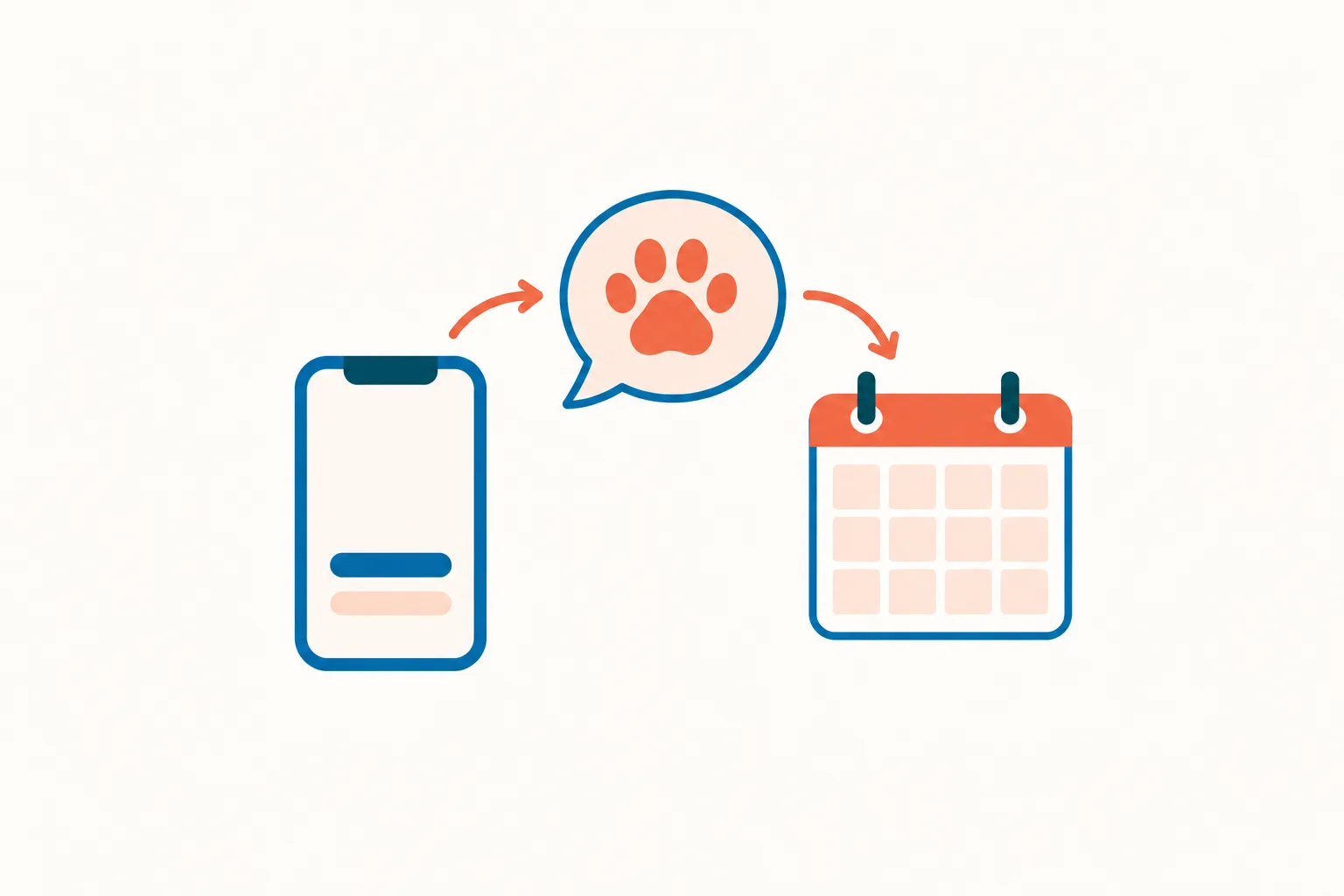
How it works in four steps
- Forward your number Use our guide to choose full forwarding, unanswered calls, busy calls or coverage after closing.
- Your receptionist answers It greets callers as your clinic, identifies itself as a virtual assistant and announces recording.
- Receive details and bookings Get email and app push alerts, with appointments booked into Google Calendar or details for callbacks.
- Test before going live Make a test call to check the greeting, intake questions and urgent routing before forwarding patient calls.
Choose Which Calls Forward to Your Receptionist
You can forward all clinic calls or send only unanswered, busy or after-hours calls to your receptionist. We provide a local number and instructions for your carrier or phone system.
- Keep your numberForward calls from the clinic number your clients already use.
- Choose your coverageDecide when calls reach your team and when they reach your receptionist.
- Follow your guideUse forwarding instructions for your carrier or phone system during setup.
Show more
Forwarding lets you decide where your receptionist fits into the clinic's day. A front desk that handles most calls might use no-answer or busy forwarding, while a clinic seeking evening coverage can choose after-hours forwarding.
We give you a local number in your area code and a forwarding guide for your carrier or phone system. Keep your existing clinic number on your website and appointment reminders. Before patient calls reach the AI receptionist, make a test call through the setup you chose and check where the call goes.
Hear the Greeting and Set the Intake Questions
Your receptionist answers as your clinic, announces that it is a virtual assistant and that recording is on, then asks intake questions using the business details you supplied.
- Clear introductionCallers hear the virtual assistant and recording notice at the start.
- Clinic instructionsYour hours, services, price policy and urgency rules guide the conversation.
- Language choiceYour receptionist speaks English and Spanish, with language changes during calls.
Show more
Your receptionist uses your onboarding answers and website to learn what your clinic offers and how calls should be handled. A boarding inquiry can become a booking conversation; a refill request becomes a message for your team. You choose the intake questions and urgent contacts.
The virtual assistant and recording notices stay in the greeting. Your receptionist collects information and follows your routing instructions without giving veterinary medical advice. Try a scenario from the fictional clinic in our browser call demo to hear how a conversation moves from the opening notice to the caller's request.
Find Call Details in Your Inbox, App and Dashboard
You receive an email and app push alert for each call, including its summary, urgency tag, transcript and recording. Your dashboard holds call details, usage and settings, and a daily email digest groups the updates.
- Call alertsEmail and app push notifications bring the conversation details to your team.
- Booking choiceUse Google Calendar for appointments or collect details for a clinic callback.
- Urgent handoffYour on-call person hears a short summary before accepting a warm transfer.
Show more
Call alerts give your team the context for the next action: return a refill call, check an appointment request or respond to an urgent message. Open the transcript or recording when you need the caller's exact wording. The dashboard also shows usage, and a daily digest email gathers call updates.
For urgent calls, set a warm transfer or page to your on-call person in the order you choose. During a warm transfer, that person hears a short summary and presses 1 to accept. Appointment calls can produce a Google Calendar booking or a message for your staff to arrange the visit.
Test the Call Flow and Change Your Settings Later
You make a test call before going live to check your greeting, intake and routing. Later, tell the AI in plain words when your clinic's hours, services or call instructions change.
- Try routine callsCheck an appointment request and the details your team receives afterward.
- Check urgent routingTest the handoff to the person you selected for urgent calls.
- Update instructionsTell the AI about changed hours, services or call handling in plain words.
Show more
A test call lets you hear your receptionist with your clinic's instructions before clients use it. Ask about an appointment, leave a message and try the urgent route. Check the resulting email, transcript and recording so you can see whether the information is useful to your staff.
After setup, change settings by telling the AI what needs updating. A different on-call contact or revised opening hours should be reflected in those instructions. You can request your clinic's free trial; a card is required before forwarding goes live.
Questions and answers
Can I keep the phone number our clients know?
Yes. Your clinic keeps its existing business number and forwards calls to the local number we provide. Choose full forwarding or coverage for unanswered, busy or after-hours calls. We supply a guide for your carrier or phone system, and you test the setup before going live.
How long does setting up an AI receptionist take?
Setup includes an email sign-in link, a chat with about 10-15 questions, forwarding instructions and a test call. Have your services, hours, price policy and urgent contacts ready. The time depends on those decisions and your phone system, so we do not give a fixed setup time.
What happens when a caller asks something it does not know?
Your receptionist can take a complete message for your team to answer. Give it clear instructions about services, prices and questions that need a callback during onboarding. Review the summary or transcript afterward and update the instructions when you find information your clinic needs to add.
How does an urgent transfer reach our on-call person?
You choose who receives urgent calls and the order for warm transfers or pages. For a warm transfer, the on-call person hears a short summary and presses 1 to take the call. Set those instructions during onboarding, then test the route before using it for patient calls.
Will our callers know the receptionist is AI and recording?
Yes. The opening greeting says your receptionist is a virtual assistant and that the call is recorded. Those notices cannot be switched off. You can hear the introduction in the browser demo and check your clinic's call experience during the test call before forwarding goes live.
Try a Clinic Call in the Browser Demo
Talk to the fictional demo clinic without signing up. Then request a free trial to give your receptionist the instructions your own team uses.